Deckhand user guide
Deckhand is an unofficial Android client for the RCON remote console that most game servers include. This guide walks through the app with screenshots taken from a real Minecraft server.
Screenshots show a test server with four bots as players. Your data stays on your phone.
1. Turn on RCON on your server
RCON is off by default. In the Add server screen, Deckhand shows the exact lines for each game. For Minecraft, set these in server.properties and restart:
enable-rcon=true
rcon.port=25575
rcon.password=your-long-password
RCON is not encrypted. Use it on your home network or through a VPN, and never expose the RCON port to the Internet.
2. Add your server
Tap +, choose the game, and type its address, RCON port and password. The (i) icons explain each field. Test connection checks everything before you save.
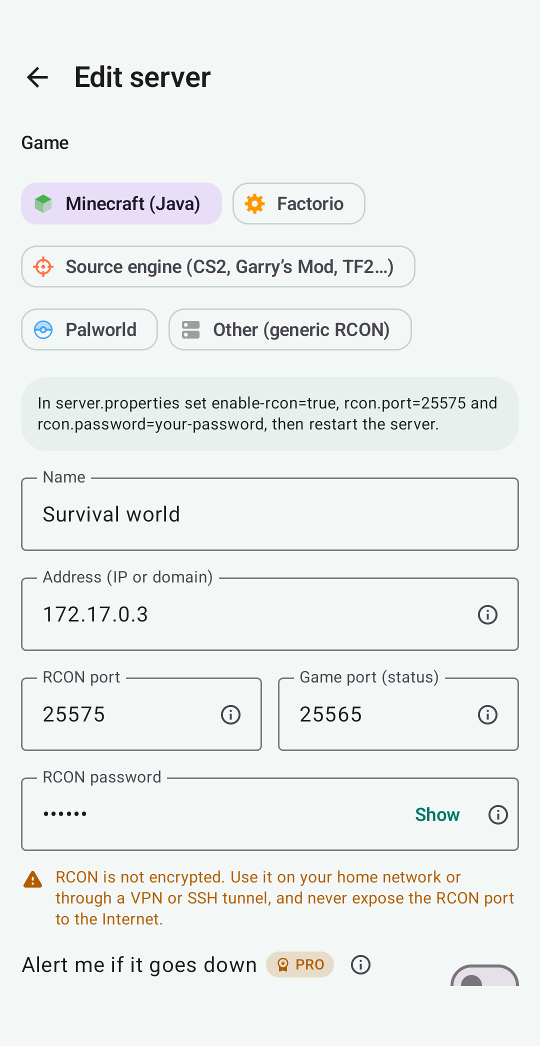
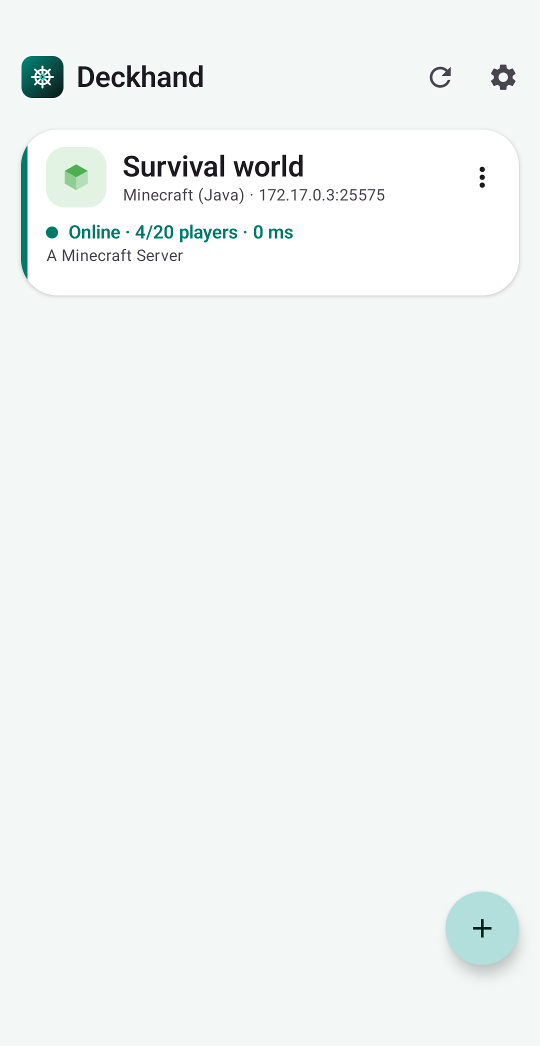
Once saved, the list shows whether the server is online, the ping and, for Minecraft, how many players are connected.
3. Use the console
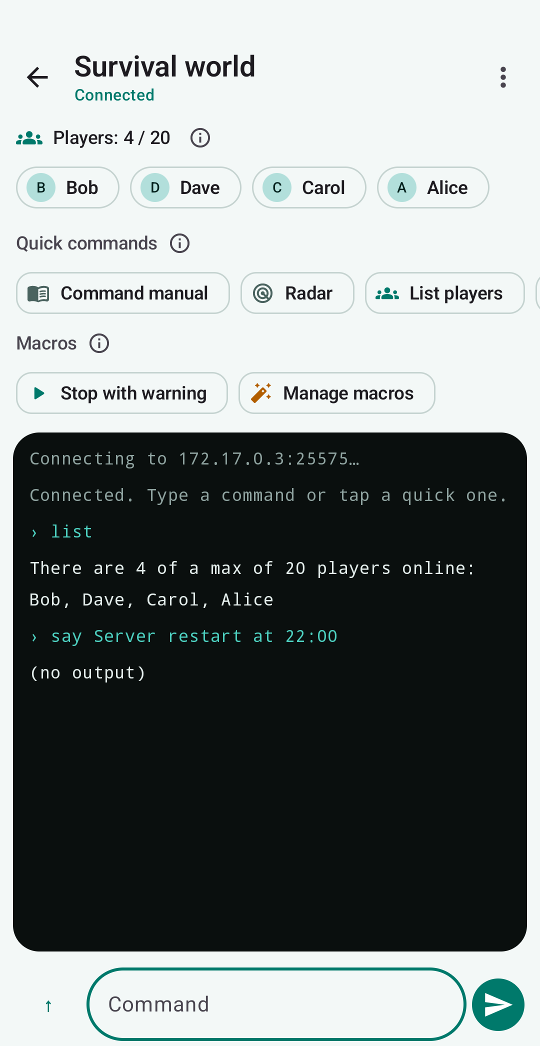
Tap a server to open its console. Type any command or use the chips above it:
- Players: connected players appear as chips and the count refreshes by itself every few seconds.
- Quick commands: one-tap commands for the game. Risky ones (stop, ban…) ask for confirmation first.
- Macros (Pro): several commands in a row with one tap.
4. Player stats (Minecraft)
Tap a connected player to see their health, food, level, game mode, position and play time, with the actions below: kick, ban, make operator, whitelist…
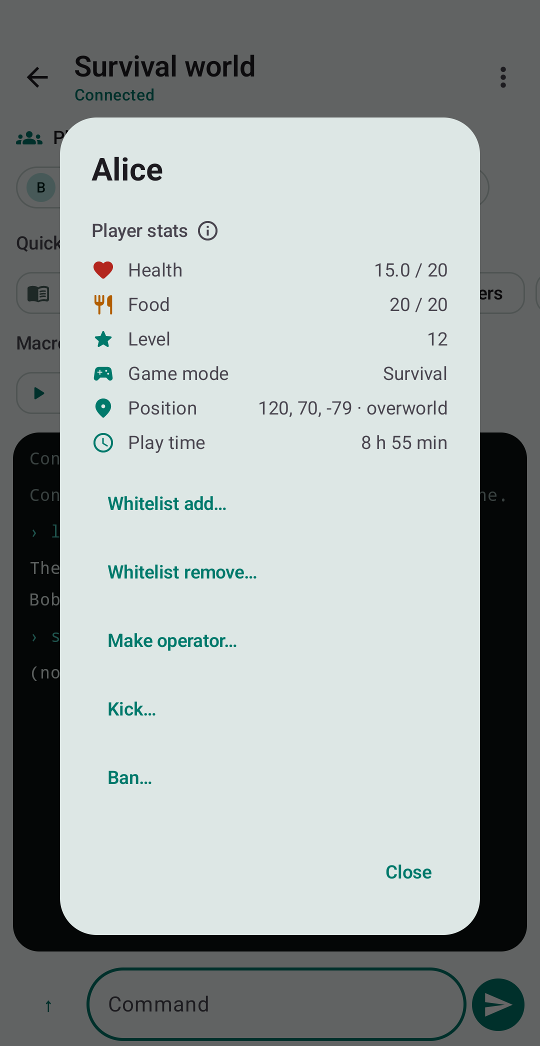
Play time counts from the moment you tap Start tracking play time; Minecraft doesn’t give RCON the earlier history.
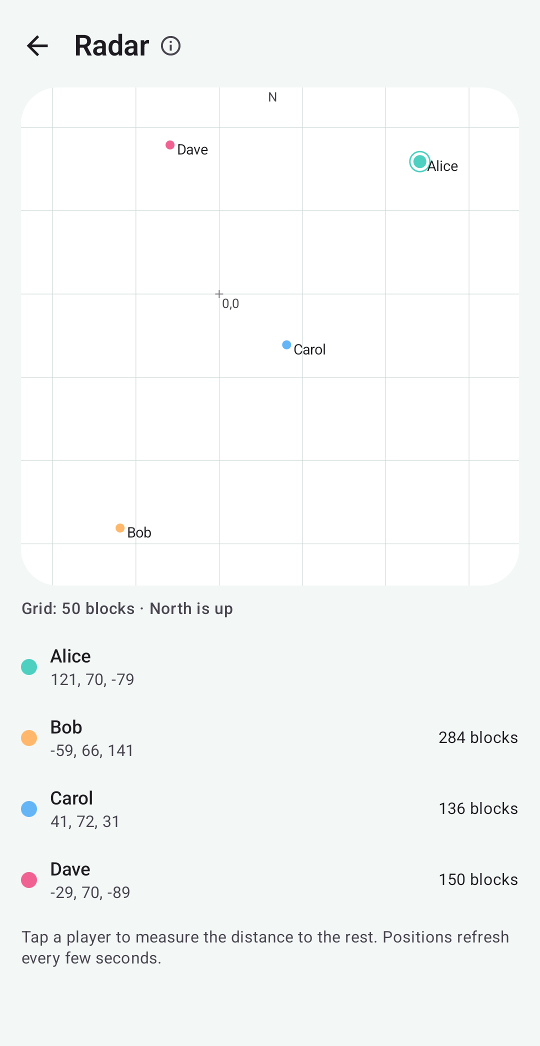
The Radar chip shows a top-down plot of where every player is, by dimension. Tap a player to measure how far the others are from them. It draws positions, not terrain.
5. Command manual
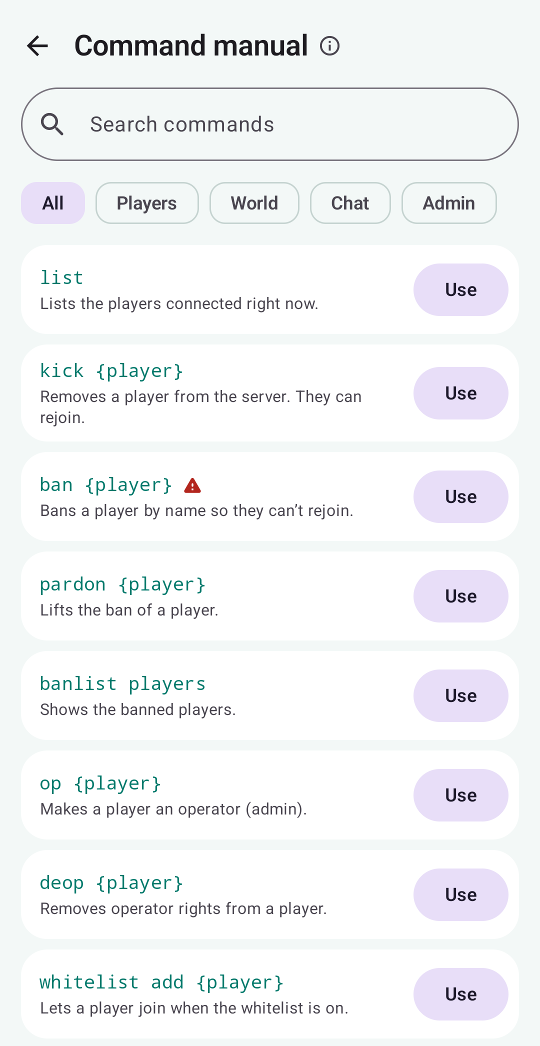
Not sure which command to type? Open Command manual from the console. Search by name, filter by category and tap Use to put the command in the console or add it to a macro. Commands marked with a red triangle ask for confirmation.
6. Macros (Pro)
The macro wizard builds sequences step by step. Start from a template (stop with a warning, save and announce, good morning…) or from scratch, then reorder steps, add commands from the manual, and add waits.
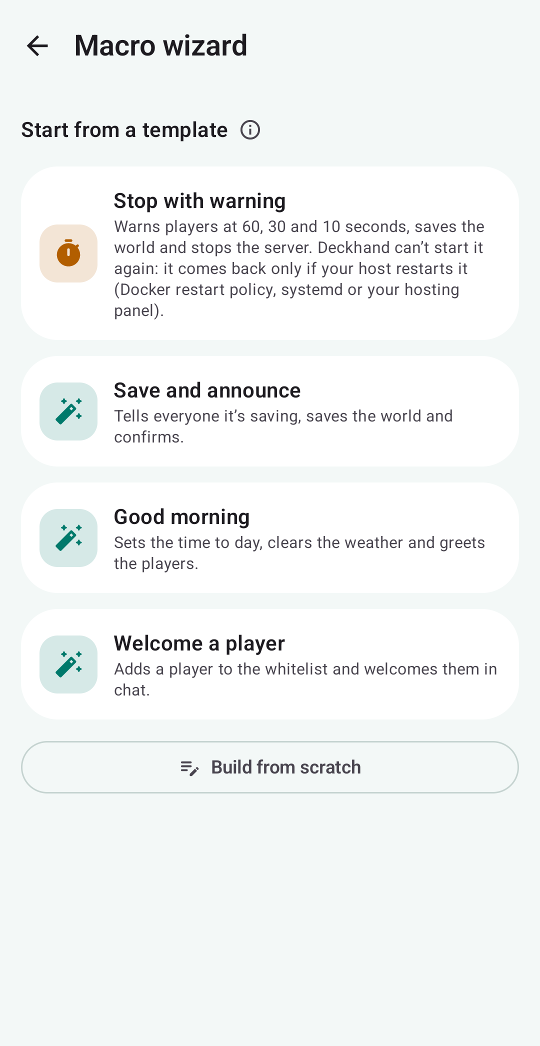
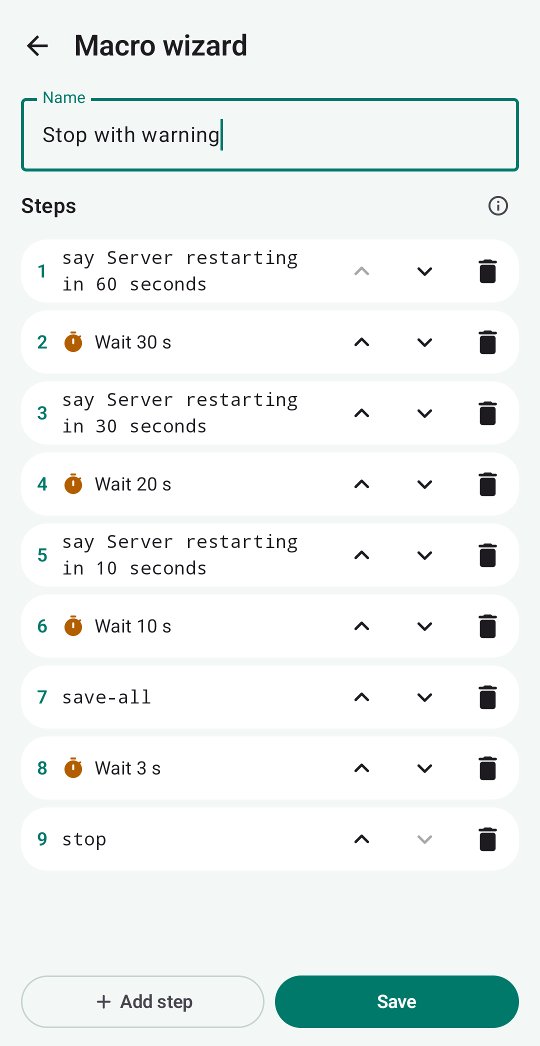
A macro can stop a server, but RCON cannot start it again. For a restart, your host must relaunch it (Docker restart policy, systemd or a hosting panel).
7. Google backup (Pro)
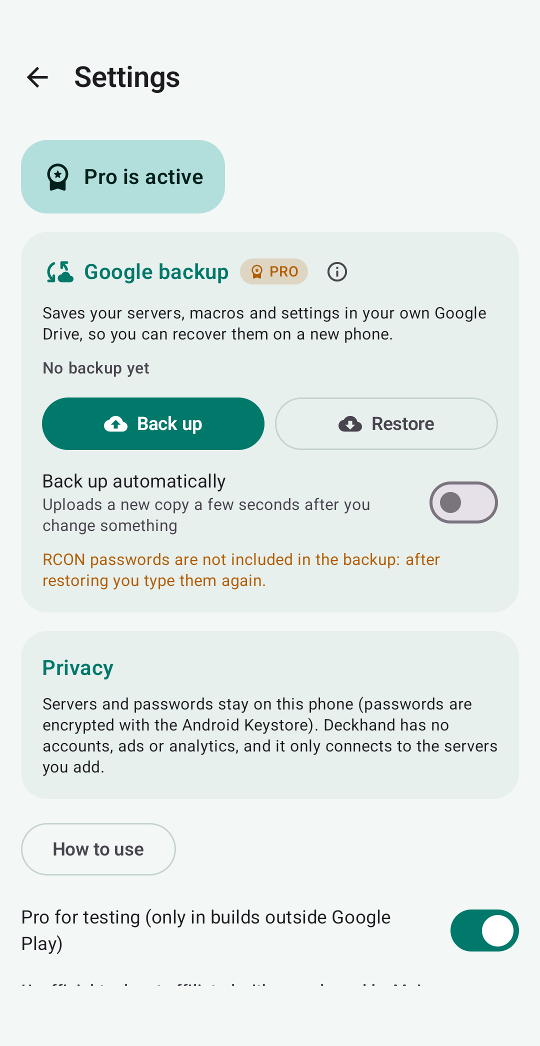
In Settings → Google backup you can save your servers, macros and settings to a hidden folder in your own Google Drive that only Deckhand can open, and restore them on a new phone. Turn on Back up automatically to upload a new copy after every change.
RCON passwords are never uploaded. After restoring, each server asks for its password again.
8. Alerts (Pro)
Turn on Alert me if it goes down in a server’s settings. Deckhand checks it in the background about every 15 minutes and notifies you only when it goes down or comes back.
Privacy
Servers and passwords stay on your phone, passwords encrypted with the Android Keystore. Deckhand has no accounts, ads or analytics and only connects to the servers you add. The optional Google backup uses your own Drive.